
-
A password manager is an essential tool to generate and store your passwords.
-
Some password managers offer extra essential features like in-built VPNs and secure emails.
-
We recommend using a reliable password manager like NordPass to protect your online credentials.
A secure password manager enables you to create and store complex passwords easily in one place, reducing the risk of weak or reused passwords. Then, when you access a website or app, the password manager automatically fills in your login credentials, saving you the hassle of remembering every password.
We tested dozens of password managers, assessing them based on ease of use, security measures, privacy policy, and additional features. This comprehensive guide presents the best password managers for 2026.
Top-notch password managers – Quick list
- NordPass: Security-focused password manager with a sleek interface and cross-platform synchronization.
- Proton Pass: Solid end-to-end encryption and seamless integration with other Proton services like secure email and VPN.
- Keeper: Offers advanced features like strong encryption, dark web monitoring, and secure storage.
- RoboForm: Offers robust security features with both free and premium plans.
- 1Password: A highly reputable password manager that balances ease of use and security.
- Dashlane: A feature-rich password manager with dark web monitoring and VPN integration.
- Bitwarden: One of the few open-source password managers known for its strong security features and transparency.
- Passwarden: Privacy-focused password manager that emphasizes user security and multi-device syncing.
- Sticky Password: Versatile password manager that offers Wi-Fi syncing and a lifetime subscription.
- Enpass: Supports offline password management and a one-time purchase model.
How do you create a strong password?
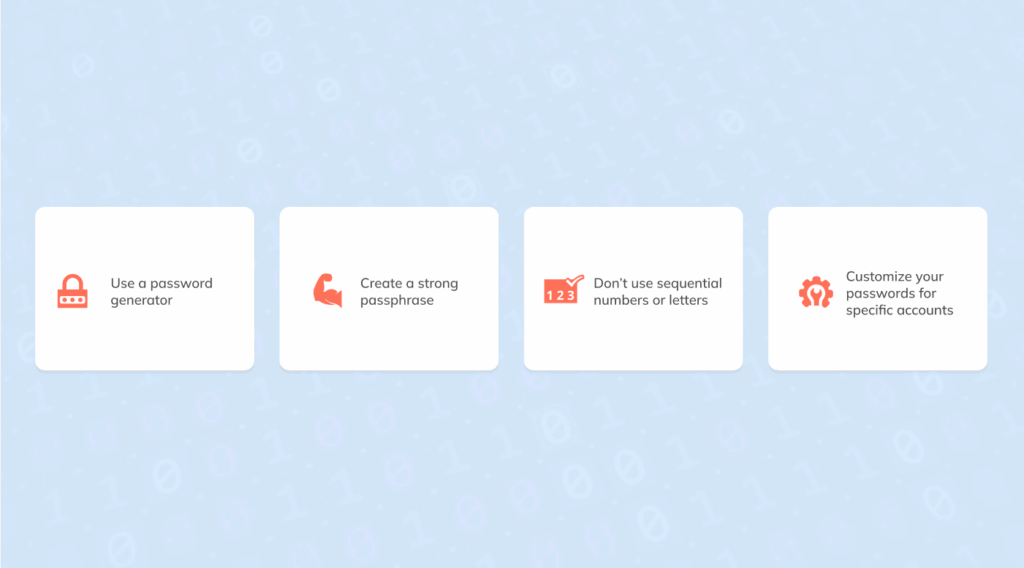
1. Use a password generator
The easiest and quickest way to create a robust password is by using a password generator. Most of the password managers on this list will help you create a sequence of random characters. Some of them even offer hints on how to remember a particular password.
2. Create a strong passphrase
A passphrase is more secure than a password because it is typically longer, making it harder to guess or brute force. Therefore, choose a unique phrase that includes letters, numbers, and punctuation instead of a single word. However, don’t use common phrases or dictionary words to avoid dictionary attacks.
3. Don’t use sequential numbers or letters
Avoid using sequential numbers or letters like 1234, jklm, or QWERTY, as these are easy to guess, especially with brute-force attacks.
4. Use emoticons
Besides symbols, you can add emoticons to your passwords to make them easier to remember. Emoticons are coded versions of emojis, usually made up of letters, punctuation, and/or numbers.
5. Customize your passwords for specific accounts
You should avoid reusing passwords; you must create different passwords for each online account. However, instead of restarting the entire process again, you could add a unique code to your password for each online account.
Best password managers today – Detailed list
1. NordPass
NordPass is our top-rated password manager as it offers a combination of ease of use, security, and cross-platform compatibility. We tested it, and our experience was positive, starting with a seamless configuration process for desktop and mobile devices. Moreover, it has a clean, intuitive, and modern interface, making it user-friendly for beginner and tech-savvy users.
- Browser compatibility: Google Chrome, Microsoft Edge, Mozilla Firefox, Apple Safari, Internet Explorer, and Opera
- Device compatibility: Windows, Linux, macOS, Android, iOS
- Best price: $1.99 per month
This password manager uses advanced encryption standards, such as XChaCha20. It also implements a zero-knowledge architecture, ensuring no one can access your stored data.
Another plus with NordPass is its seamless compatibility across all major platforms, including macOS, Windows, Linux, Android, and iOS. It also integrates well with popular browsers like Firefox, Chrome, and Edge. These extensions are easy to use, which is a good thing.
One of the most notable extra features is the password strength health to help you improve your overall security posture. This is an essential feature as most people struggle to generate strong passwords. The app also provides a biometric login feature for added convenience.
It offers a free version with essential features. The basic premium subscription plan is affordable and offers advanced features like unlimited passwords and priority 24/7 support.
Pros
- Free version available
- Supports anonymous payment option
- Passkey authentication available
Cons
- The free version supports only one device at a time
2. Proton Pass

Proton is best known for its reliable mail and VPN services, but it has recently entered the password manager market and is giving established services a run for their money.
- Browser compatibility: Chrome, Brave, Edge, Firefox
- Device compatibility: Android, iOS, Windows
- Best price: Pass Plus: $2.49/month, Pass Family: $4.99/month
The interface is intuitive and appealing with a purple palette. Everything is organized neatly, making it easy to navigate around.
This password manager is available on multiple devices, including Windows, Android, iOS, and Linux. It also has Chrome, Brave, Edge, and Firefox browser extensions. The best part is its excellent cross-platform synchronization, which enables you to access your passwords across multiple devices.
While its free version supports unlimited devices, it lacks essential features. For example, you must upgrade to a premium subscription to access 2FA and vault sharing. Also, the sentinel feature prevents hackers from accessing your account and is only available for premium members.
Pros
- Ease of use on all devices
- Functional free version
- Robust security and privacy credentials
Cons
- A bit awkward credential sharing
3. Keeper
Keeper is one of the best password managers for Apple users because its application is more polished on these operating systems than others. While the password manager is available on Android, Windows, and Linux, its app looks outdated, and some features don’t run smoothly. For instance, you might face issues with the autofill feature.
- Browser compatibility: Google Chrome, Mozilla Firefox, Internet Explorer, Microsoft Edge, Opera and Apple Safari
- Device compatibility: Android, macOS, Windows, Linux, iOS
- Best price: $2.49/month. Family: $4.99/month
Nonetheless, Keeper offers many advanced features. For example, KeeperChat is a secure messaging app that supports confidential media galleries and self-destructing messages, a better option for privacy than less private apps like Messenger.
Keeper is an affordable option with a free version and reasonably priced subscription plans. Unfortunately, the free version is too basic, supporting only one mobile device and 10 passwords, which is very low compared to its rivals.
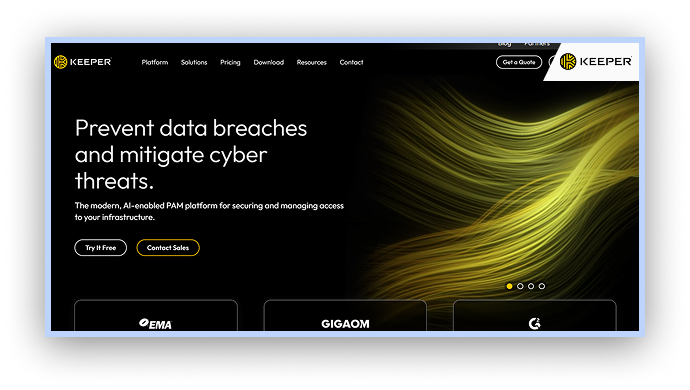
The best part is that Keeper has never had a security breach. Additionally, it protects your data with AES 256-bit encryption.
Pros
- Secure password-sharing feature
- 24/7 customer support
- Biometric authentication for secure login
Cons
- Doesn’t have automatic password updates
4. RoboForm
$1.99 monthly
Stealth encryption
Limited features in free version
RoboForm is one of the oldest password managers with reliable password storage and unmatched security. Also, its installation process is straightforward and uncomplicated. However, the interface looks outdated.
- Browser compatibility: Google Chrome, Mozilla Firefox, Microsoft Edge, Internet Explorer, Opera, and Apple Safari
- Device compatibility: Android, Windows, Linux, macOS, iOS
- Best price: $1.99/month. Family: $3.98/month
The password manager works seamlessly with popular operating systems like Windows, Android, Linux, macOS, and iOS. Its application worked well on desktop and mobile devices during our testing. Plus, you can access it offline, which is a very convenient feature.
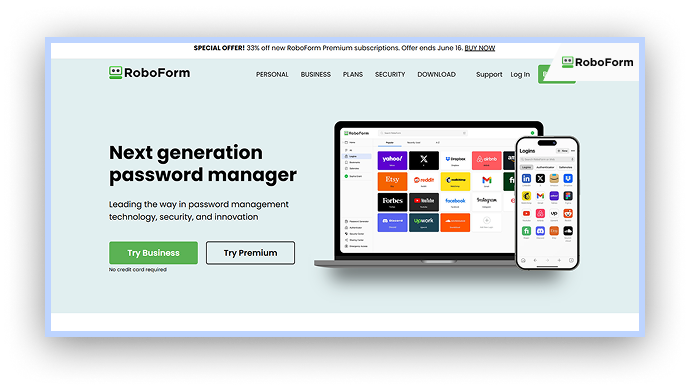
What’s more, RoboFarm is incredibly affordable, perhaps the cheapest one on this list. Its free version has advanced features such as two-factor authentication, cloud backup and compromised password monitoring.
You can upgrade to the premium plan to unlock extra features such as emergency access, secure password sharing, unlimited devices, and more.
Pros
- Compatible with multiple browsers and operating systems
- Strong encryption protocol
- Comprehensive auto-fill form feature
Cons
- The free version doesn’t have device sync
5. 1Password
1Password is a highly reputable password manager, but it doesn’t have a free version like its predecessors on this list. Thankfully, its premium subscription plans are affordable.
- Browser compatibility: Google Chrome, Brave, Mozilla Firefox, Microsoft Edge
- Device compatibility: macOS, Android, Windows, Linux, iOS
- Best price: $2.99/month. Families: $4.99/month.
One of its notable features is the travel mode, which adds extra protection when traveling. It organizes your password vaults into safe and unsafe modes to keep you safe throughout your trip. This feature is beneficial in high-risk countries for government monitoring and data theft.
The interface is pretty straightforward, with everything sorted into categories. The overall design is modern and intuitive, making it easy for both experienced and novice users.
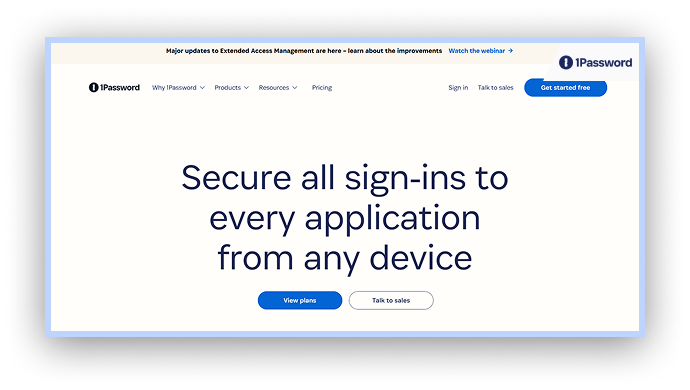
It works well with popular operating systems, including Windows, macOS, iOS, Android, and Linux. During testing, we encountered no issues on desktop and mobile devices.
Pros
- Offers robust security and privacy
- Supports all major operating systems and browsers
- Best plans for families
Cons
- Doesn’t have a free version
6. Dashlane

Dashlane is a decent password manager with amazing features and ease of use. All you need to do to start using it is enter your basic information and generate a master password to unlock the vault. Also, the interface is sleek and intuitive, making it easy to navigate the app.
- Browser compatibility: Mozilla Firefox, Google Chrome, Apple Safari, Internet Explorer, Microsoft Edge
- Device compatibility: macOS, iOS, Android, Windows, Linux
- Best price: $4.99 to $9.99 per month.
This password manager works well with various devices, including Windows, macOS, Android, Linux, and iOS. Unfortunately, it doesn’t have a desktop application, so you’ll have to rely on the browser extension. While the browser extension works smoothly, we sometimes had to correct auto-filled passwords during our testing.
It has an impeccable reputation, as it has never had a data breach. Moreover, it received the ISO 27001 certification, an affirmation that the provider adheres to strict security practices.
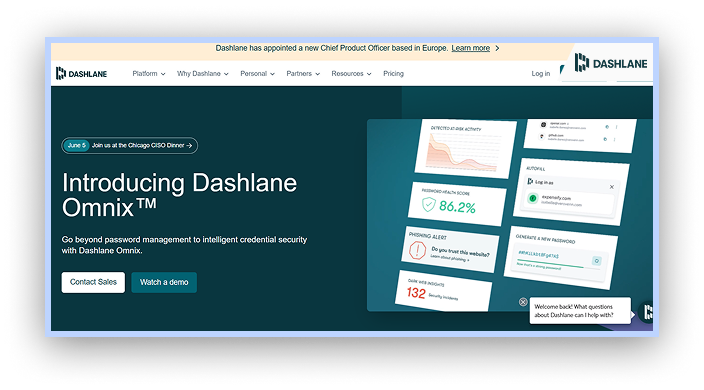
While Dashlane offers a VPN, you cannot use it on the app. Instead, it redirects you to Hotspot Shield, a reputable VPN service with which the password manager partners. This is ideal if you also want to protect your online connections.
Pros
- The free version offers the necessary features
- Supports all major operating systems
- Robust security features like VPN and dark web scan
Cons
- Expensive subscription plans
7. Bitwarden

Bitwarden is one of the few password managers that is open source. This means that security experts can review the source code for vulnerabilities, ensuring the application is trustworthy.
- Browser compatibility: Mozilla Firefox, Apple Safari, Google Chrome, Opera, Brave, Microsoft Edge
- Device compatibility: Android, Linux, macOS, Windows, iOS
- Best price: $10/year. Family: $1/month
While Bitwarden may lack certain features that other premium password managers offer, it is still a decent and affordable solution. Moreover, the installation process is straightforward, and the interface is easy to navigate.
Like its competitors on this list, Bitwarden supports Windows, Linux, Android, and macOS. While the apps are responsive and perform exemplary, the desktop app lacks some essential features like 2FA.
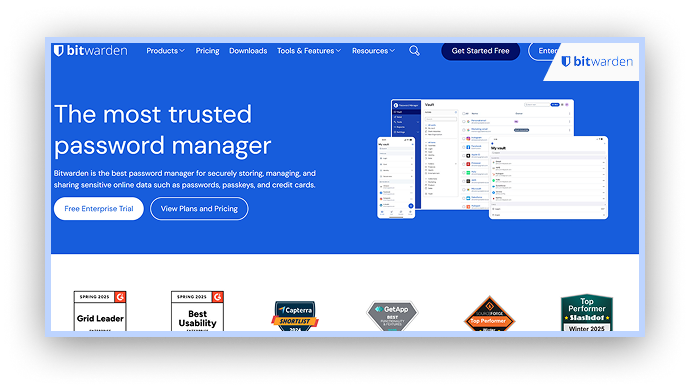
Surprisingly, Bitwarden’s free plan allows unlimited devices, which is rare for a free version. So, it is an ideal option if you want to use the password manager on multiple devices.
Pros
- Affordable subscription plans
- Open-source code
- Works well with major browsers and OS
Cons
- Doesn’t have automatic password reinforcement
8. Passwarden
$1.66 monthly
High security
Free version have limited features
Passwarden is another worthy password manager to include on this list. It has a clean and neatly organized interface for both desktop and mobile apps.
- Browser compatibility: Chrome, Firefox, Safari, and Edge
- Device compatibility: Windows, iOS, Android, and macOS
- Best price: $1.66
Unlike the other password managers on this list, Passwarden doesn’t have an application for Linux users. Nonetheless, it works well for Windows and macOS. We also tested the mobile application on iOS and Android, and it was responsive and easy to use.
This password manager also offers a built-in VPN, which helps you secure your passwords and encrypts your online traffic. Additional security features include zero-knowledge architecture and two-factor authentication.
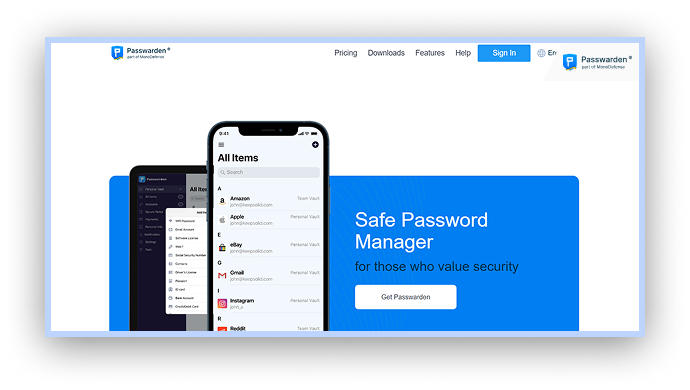
It offers a free version, but it has limited features. Thankfully, the premium version is affordable and unlocks so much more.
Pros
- Cross-platform compatibility
- Budget-friendly pricing
- Dependable security features
Cons
- Free version has limited advanced features
9. Sticky Password
$29.99 yearly
Supports all type of browsers
Free version has limited features
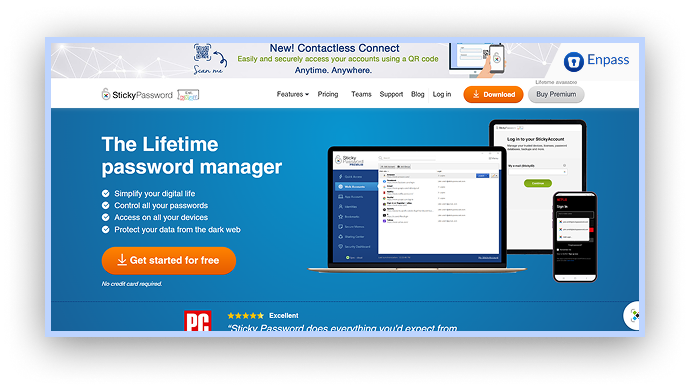
Sticky Password is one of the most expensive password managers on this list. It only offers a lifetime plan that supports 1 user. While it has robust security features and even implements PBKDF2 protocols to minimize app vulnerabilities, its rivals like NordPass have better security for a fraction of the cost.
- Browser compatibility: Chrome, Edge, Firefox, Explorer, Safari, Opera, Yandex, Seamonkey
- Device compatibility: Windows, Android, macOS, and iOS
- Best price: $29.99/year
Another downside is that Sticky Password doesn’t have a Linux app. Although Linux isn’t a popular operating system, many password managers on this list support it. Nonetheless, it works fine with other operating systems like Android, macOS, iOS, and Windows.
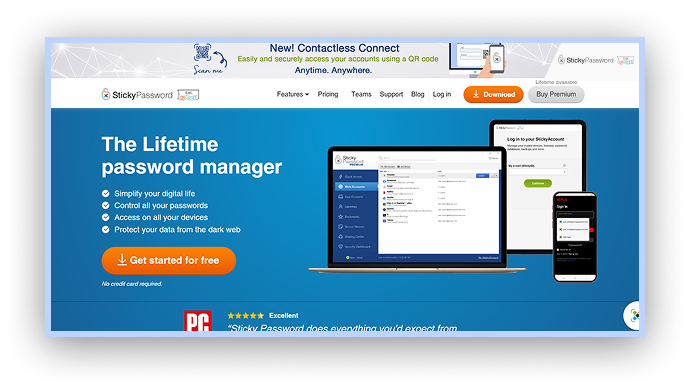
The interface isn’t appealing and looks a bit outdated. However, we had no issues navigating through the app during testing. But for that price, we expected something better.
Pros
- Compatible with many browsers
- Generates robust passwords
- Auto-fill web forms
Cons
- Limited premium plans
10. Enpass

Enpass is one of the few password managers that support offline use. This means that it stores your passwords locally on your device and not its servers.
- Browser compatibility: Firefox, Chrome, Opera, Safari, Explorer, Edge
- Device compatibility: Linux, Windows, Android, macOS, iOS
- Best price: $1.99/month: Family $2.99/month
The interface is appealing, with everything conveniently placed on the left. Also, your entries are organized into categories, such as identity information, login credentials, credit card information, etc.
In terms of security, Enpass uses AES 256-bit encryption to protect data. While most password managers use XChaCha20, AES-256 is still a formidable encryption protocol.
As for pricing, Enpass is an affordable option. It has a free version but is limited to the desktop application and can store up to 20 passwords. Also, the subscription plans are budget-friendly.
Pros
- Support offline functionality
- Lifetime subscription
- Compatible with multiple platforms
Cons
- Limited support for mobile apps
How we tested and ranked these password managers
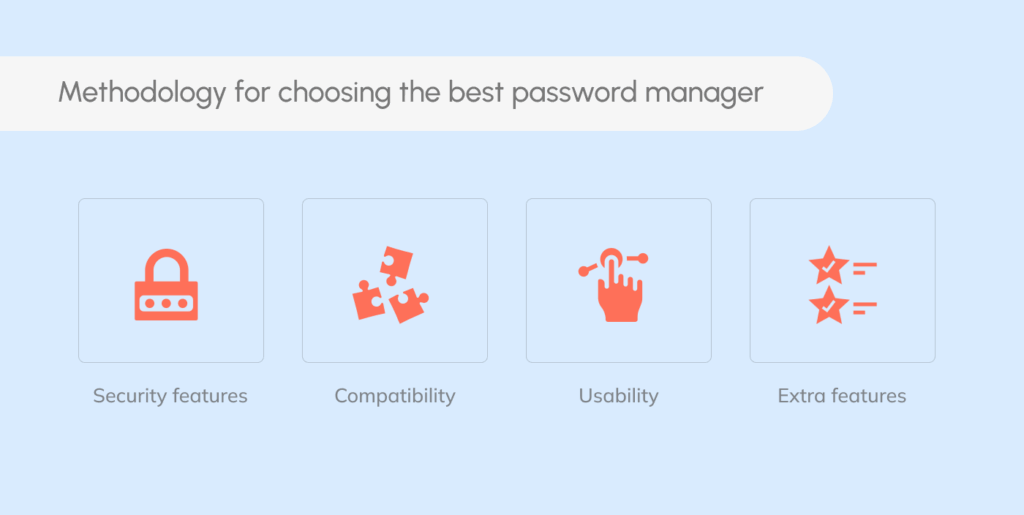
We tested them on both mobile and desktop operating systems. Here are some of the things we considered:
- Security features: When choosing the best password managers, we first considered their security measures. We checked the encryption, privacy policy, and authentication method.
- Compatibility: You’ll probably access your online accounts on multiple devices, so we chose password managers that are compatible with popular operating systems, including Windows, Android, iOS, and macOS. Some password managers even offer cross-device syncing features.
- Usability: Password managers are designed to simplify your online experience, so their interfaces shouldn’t be complicated. When testing the apps, we paid attention to the layout, design, and overall intuitiveness.
- Extra features: A reliable password manager should offer more features than just simple password management. For example, the password managers on this list offer additional features such as auto-fill, password health reports, two-factor authentication, etc.
- Customer support: Even the best password manager can encounter technical issues. We contacted customer support for every password manager on this list to ensure they are professional, prompt, and thorough.
Why is a password manager necessary?
Nowadays, we have many online accounts, each with a password. Most people choose simple passwords they can remember or reuse one password on all of their accounts, which is very risky. That is where a password manager comes in to simplify password management and improve your online security.
A password manager will help you generate and store robust, unique passwords for each of your accounts.
Think strong passwords only matter for banking? Think again. Weakened or reused credentials are a goldmine for hackers, who often bundle and sell them in bulk on dark web sites to fuel identity theft, scams, and further attacks.
Fortunately, most password managers employ a zero-knowledge architecture, ensuring your sensitive information remains confidential.
Is there a 100% free password manager?
Free things are tempting, but you’ll get what you pay for with password managers. Providers find it difficult to maintain free security software, so they pair it with other features or products to generate revenue. They also enforce restrictive policies and limited features on their free password manager tiers.
Nonetheless, there are notable exceptions that are worth considering. For example, NordPass has a reliable free tier with impressive features like unlimited passwords and priority 24/7 support. Also, some password managers on this list offer both free and premium subscription plans.
Is it safe to trust a password manager with all your passwords?
A password manager enables you to protect all your passwords with a strong master password. However, what if the password manager’s servers are breached and your information is stolen?
Thankfully, most apps on this list use AES-bit encryption, ensuring your data remains unreadable without your master password. Others also add a zero-knowledge security model, where even the password manager provider cannot see your master password.
However, password managers that store data in the cloud carry inherent risks, but some, like Bitwarden and 1Password, handle these concerns well. Fortunately, some, like Enpass, can be a good fit if you want to keep your passwords locally.
The privacy policies of the apps on this list outline the data they collect and when third parties might be involved. We went through them and didn’t see anything that might raise concerns.
Some password managers support generating multi-factor authentication codes, but you shouldn’t use this feature in your password manager. While the feature offers the convenience of auto-filling codes, the problem is that if an attacker accesses your password manager, they can access all your accounts.
Can a password manager be hacked?
No system is immune to hacking despite the robust security measures employed. However, the chances of getting hacked depend on various factors and can be minimized.
First and foremost, encryption is the bare minimum. A reliable password manager should use robust encryption methods like AES 256-bit encryption or ChaCha20. Also, as mentioned earlier, it must have a zero-knowledge architecture to prevent the provider from accessing your passwords.
As a user, you can enhance your security by enabling two-factor authentication and creating a complex master password. Moreover, ensure you don’t reuse the same password anywhere else.
Generally, while every system is technically susceptible to hacking, it’s not guaranteed that it will happen. The password managers on this list implement strict security rules, and you can play your part to improve your security as well.
Why you shouldn’t use Chrome or any other browser password manager
Most popular web browsers, including Chrome, Safari, and Firefox, offer to save your passwords and generate new ones, like a password manager. Some can even notify you of password reuse and breaches.
The browser’s password storage is better than nothing, as you’ll get encryption, two-factor authentication, and autofill features. However, a standalone password manager is much better because of the cross-compatibility across operating systems and browsers.
While interoperability of browser-based password managers is improving (e.g., you can save your passwords on Chrome and access them on Safari), they only work in the specific browser. If they support across platforms, the feature tends to be awkward to use.
Putting it all together
A robust password manager is your first and most critical defense for securing your accounts. Pairing it with a trusted VPN adds a vital layer of protection for your internet connection. But true online privacy is a holistic practice. It’s a puzzle you need to complete.
If you’re ready to build a complete privacy shield (from securing your social media accounts and de-Googling your life to understanding advanced browser settings), follow our actionable, step-by-step guide on how to achieve thorough online privacy.
FAQs
Password managers are perfectly legal virtually everywhere worldwide. In fact, a password manager is an essential tool as it will help you create stronger passwords and manage them.
Most password managers on this list have an excellent reputation and have never been hacked. They implement robust encryption methods and advanced security features to protect your sensitive information as much as possible.
Security experts recommend using password managers to protect your passwords and improve your online security. However, they discourage using browser-based password managers, like Chrome password managers.
Yes, you need to install a password manager on all of your devices to enjoy its features, such as full synchronization across platforms. This will enable you to access your accounts from anywhere. Also, installing the password manager on each device helps to maintain consistent security.
LastPass was once our top recommendation, but it revised its free plan only to include one device. It has also had more bad security breaches than any other service on this list, so we omitted it. If you want a free password manager, Bitwarden is a significantly better option.
